10 April, 2026
Using OCR models with llama.cpp
An easy-to-follow guide on how to use OCR models with llama.cpp.

llama.cpp now supports various small OCR models that can run on low-end devices. These models are small enough to run on GPU with 4GB VRAM, and some of them can even run on CPU with decent performance.
In this post, I will show you how to use these OCR models with llama.cpp.
Supported OCR models
At the time of writing, llama.cpp supports the following OCR models:
- LightOnOCR
- Qianfan-OCR
- PaddleOCR-VL (note: may have degraded performance)
- GLM-OCR
- Deepseek-OCR
- Dots.OCR
- HunyuanOCR
As well as other small general-purpose multimodal models that can perform OCR tasks, such as:
- LFM2.5-VL-450M
- Qwen3-VL-2B-Instruct
- gemma-4-E2B-it and gemma-4-E4B-it
Follow this link to the collection of OCR GGUF models on Hugging Face.
Please refer to the llama.cpp-multimodal documentation for up-to-date information on supported OCR models.
Quick start
If you haven't installed llama.cpp yet, please follow the installation guide to set it up.
Once you have llama.cpp installed, you can use the following command to run an OCR model:
# Example: Run CLI (for testing only!)
llama-cli -hf <model-name> -p "OCR" --image <path-to-image>

# Example: Run server (recommended for most use cases)
llama-server -hf <model-name>
Example CLI usage (for testing only):
llama-cli -hf ggml-org/GLM-OCR-GGUF -p "OCR" --image ../0_invoice.png
Example server usage
Deploying the server is recommended for most use cases, as it allows you to easily integrate the OCR model into your applications using the REST API.
llama-server -hf <model-name>

# Example:
llama-server -hf ggml-org/GLM-OCR-GGUF
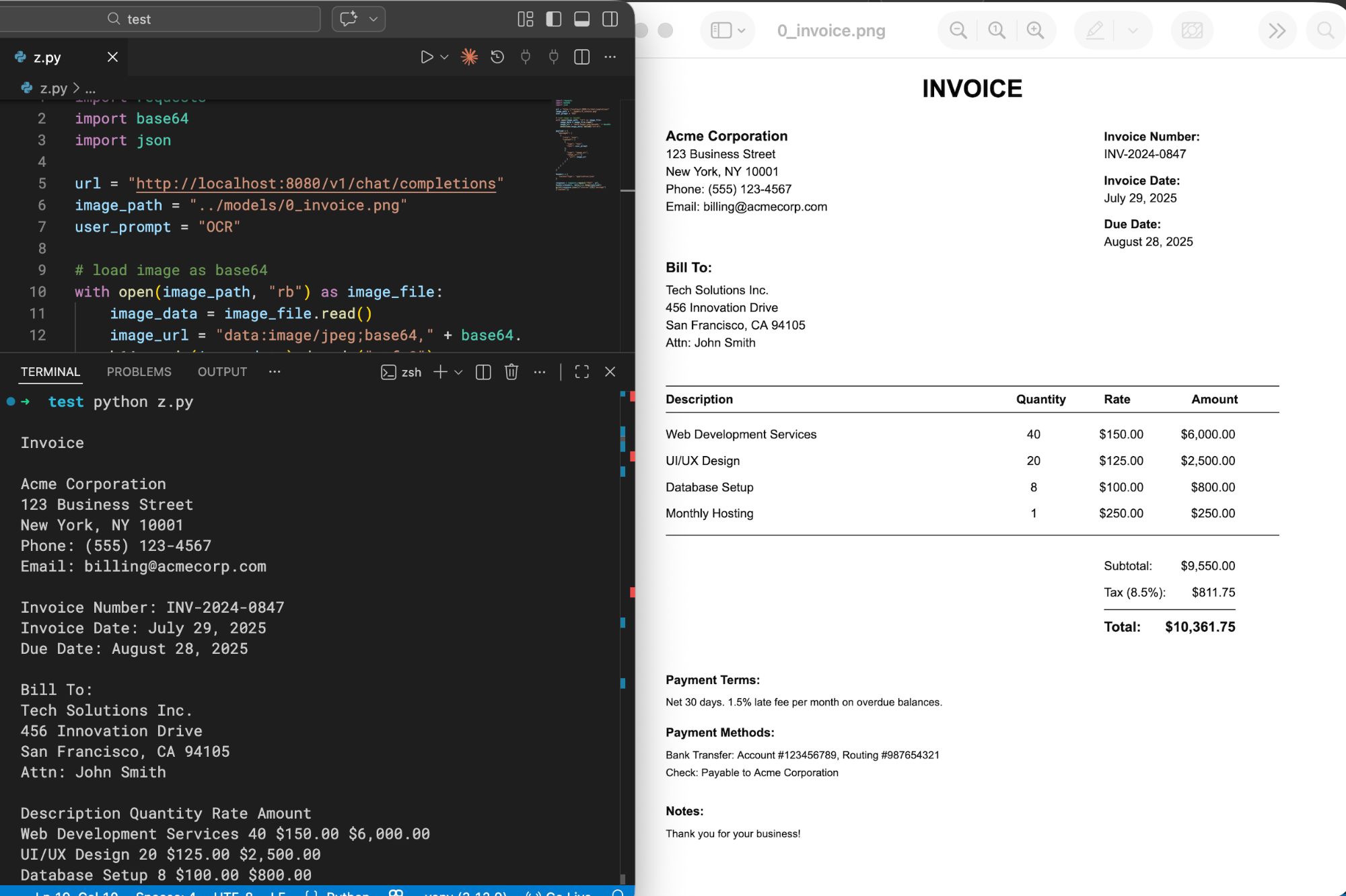
An server instance will be launched at http://localhost:8080. You can send a POST request to the /v1/chat/completions. Example python code:
import requests
import base64
import json

url = "http://localhost:8080/v1/chat/completions"
image_path = "../0_invoice.png"
user_prompt = "OCR"

# load image as base64
with open(image_path, "rb") as image_file:
    image_data = image_file.read()
    image_url = "data:image/jpeg;base64," + base64.b64encode(image_data).decode("utf-8")

# alternatively, you can also specify a remote image URL, such as:
# image_url = "https://example.com/image.jpg"

payload = {
  "messages": [
    {
      "role": "user",
      "content": [
        {
          "type": "image_url",
          "image_url": {
            "url": image_url
          }
        },
        {
          "type": "text",
          "text": user_prompt
        }
      ]
    }
  ]
}

headers = {
  'Content-Type': 'application/json'
}

response = requests.request("POST", url, headers=headers, data=json.dumps(payload))
print(response.json()["choices"][0]["message"]["content"])
The code above gives me the following output:
Tips and tricks
Input prompts
OCR models are usually trained with a specific prompt format, which may vary from model to model. Please refer to the documentation of each model for the recommended prompt format.
Some common prompt formats include:
- "OCR"
- "OCR markdown"
- "OCR HTML table"
- "<|grounding|>OCR"
- "OCR language: Chinese"
Most models follow the order of image first, then text prompt. However, some models may require the text prompt to be placed before the image. Please refer to the documentation of each model for the correct order.
For general-purpose multimodal models, you should include more instructions in the prompt to specify that you want to perform OCR tasks. For example:
- "Please perform OCR on the input image, output the result in markdown format. Do not include any explanations, only output the OCR result inside
markdownblock."
Quality and performance
Most models are quantized to Q8_0 by default, which provides a good balance between quality and performance. However, you can also try F16 for better quality, but it may require more powerful hardware.
Example:
# F16 model
llama-server -hf ggml-org/GLM-OCR-GGUF:F16

# Q8_0 model (default if not specified)
llama-server -hf ggml-org/GLM-OCR-GGUF:Q8_0
Halucination and incorrect results
Some models may have halucination issues, which means they may generate incorrect or irrelevant text that is not present in the image. If you encounter this issue, you can try the following tips:
- Lower the temperature setting (e.g.,
--temperature 0.1or--top-k 1) to make the model more deterministic. - Make sure the image is clear and of high quality, as poor image quality can lead to incorrect OCR results.
- Try F16 quantization or try another model. Some models may not trained on specific languages or types of images.
Conclusion
In this post, we have learned how to use OCR models with llama.cpp. With the support of various small OCR models, llama.cpp can now be used for a wider range of applications that require OCR capabilities, without relying on cloud services.
If you have any questions or suggestions, please feel free to leave a comment below!